

YouTube Transcripts and SEO for Law Firms
YouTube video transcripts are a high-impact SEO lever for law firms. They turn spoken insights into crawlable text that search engines index. Because of that, your firm appears for more relevant queries and long tail phrases.
Transcripts also improve accessibility for hearing impaired viewers and for readers who prefer text. As a result, watch time and user engagement often increase. Moreover, transcripts let you reuse content for blog posts, client guides, and email.
You can upload timed .srt or .vtt files for precise syncing and better viewer experience. However, automatically generated captions still require careful review and editing for accuracy.
This guide explains step-by-step how to create, format, and publish transcripts in YouTube Studio. It covers formats, common syncing problems, and simple fixes you can apply today. Therefore, your firm will gain improved discoverability across search and video platforms.
We include practical tips, tools such as Rev and Notta, and real-world examples. By following this practical advice, you will boost accessibility, engagement, and organic traffic. Start here to make your video content work harder for client acquisition and local visibility.
We also share quick checklists, captioning best practices, and troubleshooting steps. Read on to convert your video library into measurable SEO value.
YouTube video transcripts: create, format, and upload
Transcribing your firm’s video content makes search engines and people find your expertise. First, decide whether to use automatic captions or manual transcription. Automatic captions save time because YouTube can generate them for you. However, they often miss legal terms and names. Therefore, always review and edit any auto captions before publishing.
Use these options for transcripts and captions
- YouTube automatic captions via YouTube Studio. You can then edit and export the text. Use YouTube Studio to open your video settings. Because this option is free, many firms start here. However, accuracy varies.
- Third-party paid services like Rev provide human-reviewed, timed transcripts. Visit Rev for file and pricing options. These services deliver higher accuracy for legal jargon.
- Automated transcription tools such as Notta offer fast output and editing tools. Try Notta for AI-based transcripts that you can quickly correct.
Step-by-step upload process in YouTube Studio
- Open YouTube Studio and sign in.
- Select Content and pick a video.
- Click Subtitles and choose Add.
- Upload a timed transcript file or choose Auto-sync if you only have text.
- Review the timing in the editor and fix speaker labels.
- Publish when you confirm accuracy.
Formats and timecodes to use
- Use .srt or .vtt for precise syncing. These formats include timestamps.
- Use .txt only for SEO publishing outside YouTube. Text files lack timing.
- Include timecodes in hh:mm:ss,ms or standard .srt lines. Accurate timestamps avoid overlap.
Common syncing and formatting issues and fixes
- Issue: Avoid overlapping time ranges. If captions overlap, shorten one segment.
- Issue: Fix long lines that wrap across two captions. Instead, break sentences at natural pauses.
- Issue: Prevent missing punctuation and capitalization. These affect readability and indexing.
- Issue: Remove unnecessary speaker labels when they cause clutter. Use labels when multiple speakers matter.
- Issue: Handle drift where captions fall out of sync. Edit timestamps in the YouTube editor or re-run auto-sync.
Best practices for law firms
Always proofread transcripts for legal terms. Also, keep lines short and readable. Finally, publish the transcript on your website for SEO and accessibility. Doing so improves discoverability and client trust.
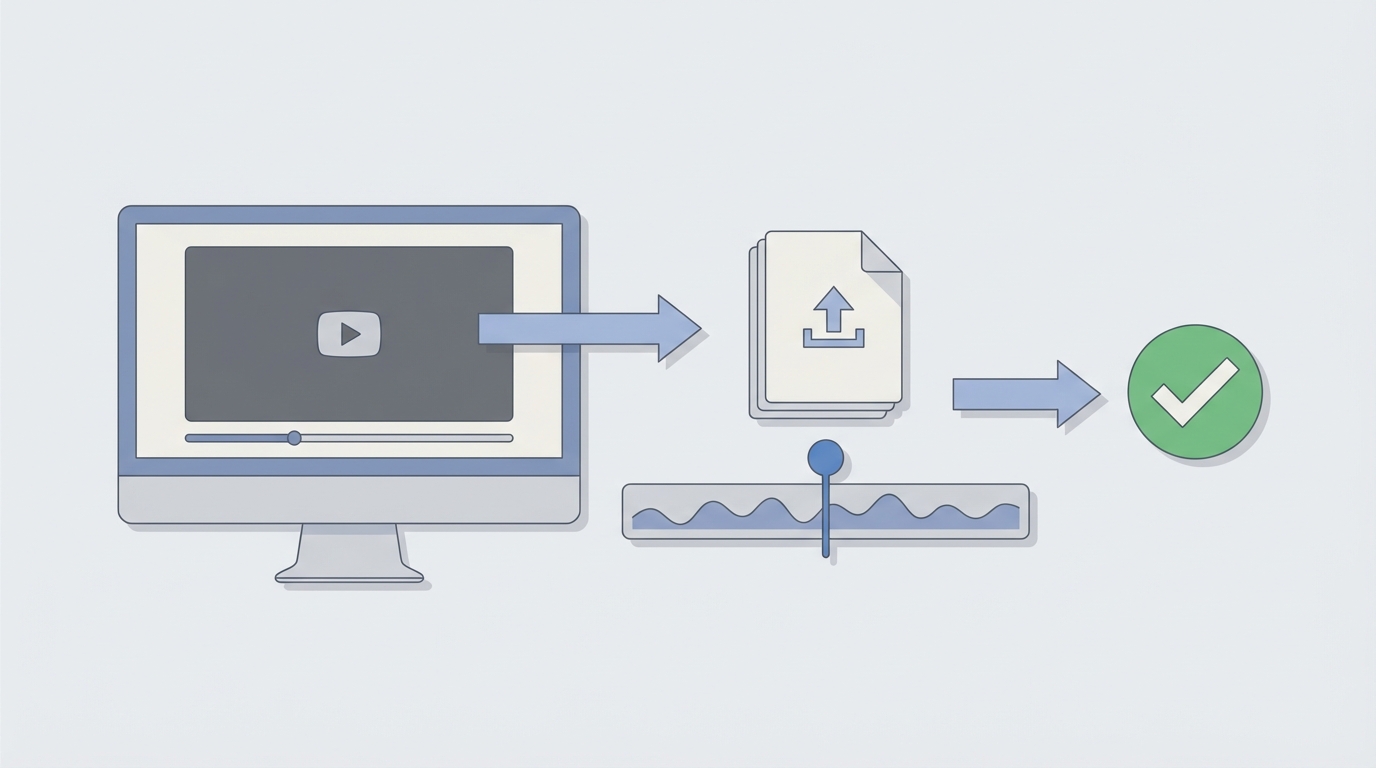
How YouTube video transcripts support local SEO signals
Video transcripts help law firms send stronger local SEO signals to search engines and users. Because transcripts convert spoken words into crawlable text, search engines can index location phrases and service terms. As a result, your firm appears for more relevant local queries. Also, transcripts improve accessibility and user experience for all visitors.
How transcripts contribute to local SEO signals
- They supply crawlable text that includes location names, practice areas, and local keywords.
- They increase on-page relevance when you publish transcripts on your local landing pages.
- They improve dwell time because visitors read or scan the content, which can indirectly boost SEO.
- They help Google better understand video context when paired with structured data. For guidelines, see Google Video Guidelines.
- They enhance accessibility, which supports user satisfaction and compliance goals.
Practical examples that improve local search results
- Example: Add a full transcript to a local practice page and include neighborhood names. This helps your page rank for those place-based queries.
- Example: Embed a YouTube video with a published transcript under the player. Embedding keeps users on your site longer and feeds both video and text signals to Google.
- Example: Use accurate timecodes in .srt or .vtt files and upload them via YouTube Studio. Proper timing reduces friction for viewers and improves engagement metrics.
How transcripts boost engagement through video sharing on social media
When you share clips on social platforms, include transcript excerpts in the post. For example, quote a short Q and A line with a local city name. This tactic increases relevance and clickthroughs. Also, repurpose transcript text into captions for native uploads to improve accessibility. Finally, use services like Rev or Notta to get accurate, timed transcripts when you need local terminology handled precisely.
Key takeaways for law firms
Transcripts strengthen multiple local SEO signals at once. They provide indexable content, support accessibility, and increase engagement. Therefore, add accurate transcripts to both YouTube and your website. Doing so helps your firm show up in more local searches and builds trust with potential clients.
Use this quick comparison to pick the best option for YouTube video transcripts. The table covers formats and transcription tools, comparing compatibility, ease of use, accuracy, pricing, and ideal use cases. Therefore you can choose the right mix of cost and quality for your law firm.
| Format or Tool | Compatibility | Ease of use | Accuracy | Pricing | Best for |
|---|---|---|---|---|---|
| .srt (SubRip) | Native to YouTube and most video players. | Moderate — requires timecodes and basic formatting. | High when timed and proofread manually. | Free to create; paid services add cost. | Precise syncing and SEO-ready captions. |
| .vtt (WebVTT) | Supported by YouTube and modern web players. | Moderate — similar to .srt with web cues. | High with correct timestamps and styling. | Free; commonly used for browser captions. | Accessibility and browser native captions. |
| .txt (Plain transcript) | Any platform for publishing text and SEO. | Very easy — plain text, no timing. | Low for in-video sync; high for SEO text. | Free | Publishing full transcripts on your website. |
| YouTube automatic captions | Built into YouTube Studio for uploads. | Very easy — auto-generated by Google. | Variable — often misses legal terms and names. | Free | Quick starter captions and draft transcripts. |
| Rev (human transcription) | Delivers .srt, .vtt, and plain text files via Rev. | Easy — upload and receive timed files. | Very high — human-reviewed and accurate. | Paid per minute; check site for rates. | Client-facing videos and polished captions. |
| Notta (AI + editor) | Exports timed files and text via Notta. | Easy — automated plus editor for fixes. | Good — fast but needs legal term checks. | Tiered pricing; free tier available. | Fast drafts and searchable meeting transcripts. |
Note: Use human-reviewed transcripts for client-facing videos. Also, repurpose timed files for website SEO and social posts to boost engagement.
Conclusion
YouTube video transcripts turn spoken insights into indexable text that search engines read. Because search engines can crawl transcript text, your pages gain keyword relevance and reach. As a result, law firms rank for more practice-area and local queries. Transcripts also help screen readers, which improves accessibility and compliance.
Transcripts increase engagement by making content skimmable for busy clients. Moreover, readable transcripts raise watch time when viewers switch between video and text. They also provide copy for social posts, emails, and blog repurposing. Repurposed transcript content also improves internal linking and site authority.
Accurate timecodes and proper formats like .srt or .vtt improve viewer experience. However, poorly timed captions can harm usability and must be avoided. Use manual review or trusted services like Rev and Notta for legal accuracy. Human review reduces transcription errors for legal terms and names. Audit captions regularly.
For firms needing strategic support, Case Quota applies Big Law marketing strategies to scale growth. They also craft content, optimize metadata, and measure local performance to deliver results. Start with your top videos, add transcripts, and publish them on your site today. Partnering accelerates results while you focus on client work.
Frequently Asked Questions (FAQs)
What are YouTube video transcripts and why do they matter for law firms?
YouTube video transcripts are written versions of spoken video audio. They provide crawlable text for search engines. Because of that, transcripts boost SEO, search engine discoverability, and long tail keyword coverage. They also improve accessibility for hearing impaired viewers. As a result, transcripts increase engagement and provide content you can repurpose for blogs and social posts.
How do I add transcripts to a YouTube video?
Open YouTube Studio and select Content for your video. Then go to Subtitles and choose Add. Upload a timed file such as .srt or .vtt for accurate syncing. Alternatively, paste plain text and use Auto-sync to create timecodes. Finally, review the captions carefully and publish when they match the audio.
Should I use automatic captions or a paid transcription service?
Automatic captions are fast and free, but accuracy varies. They often miss legal terms and names. Therefore use automatic captions only as a first draft. For client-facing videos, invest in human transcription or a high quality AI service. Services like Rev or Notta produce timed files and reduce editing work.
Will transcripts help local SEO and social engagement?
Yes. Transcripts add location names and practice area phrases that search engines can index. Publishing transcripts on local landing pages increases on-page relevance. Also, short transcript excerpts improve captions for social video shares. As a result, you see better clickthrough rates and more qualified leads from local searches.
What common problems occur and how do I fix them?
Sync drift happens when timecodes are wrong. To fix it, re-export the file with corrected timestamps or use YouTube’s editing tools. Avoid overlapping time ranges and long caption lines. Also proofread for punctuation and speaker labels. Finally, use .srt or .vtt for most video players to keep timing accurate.